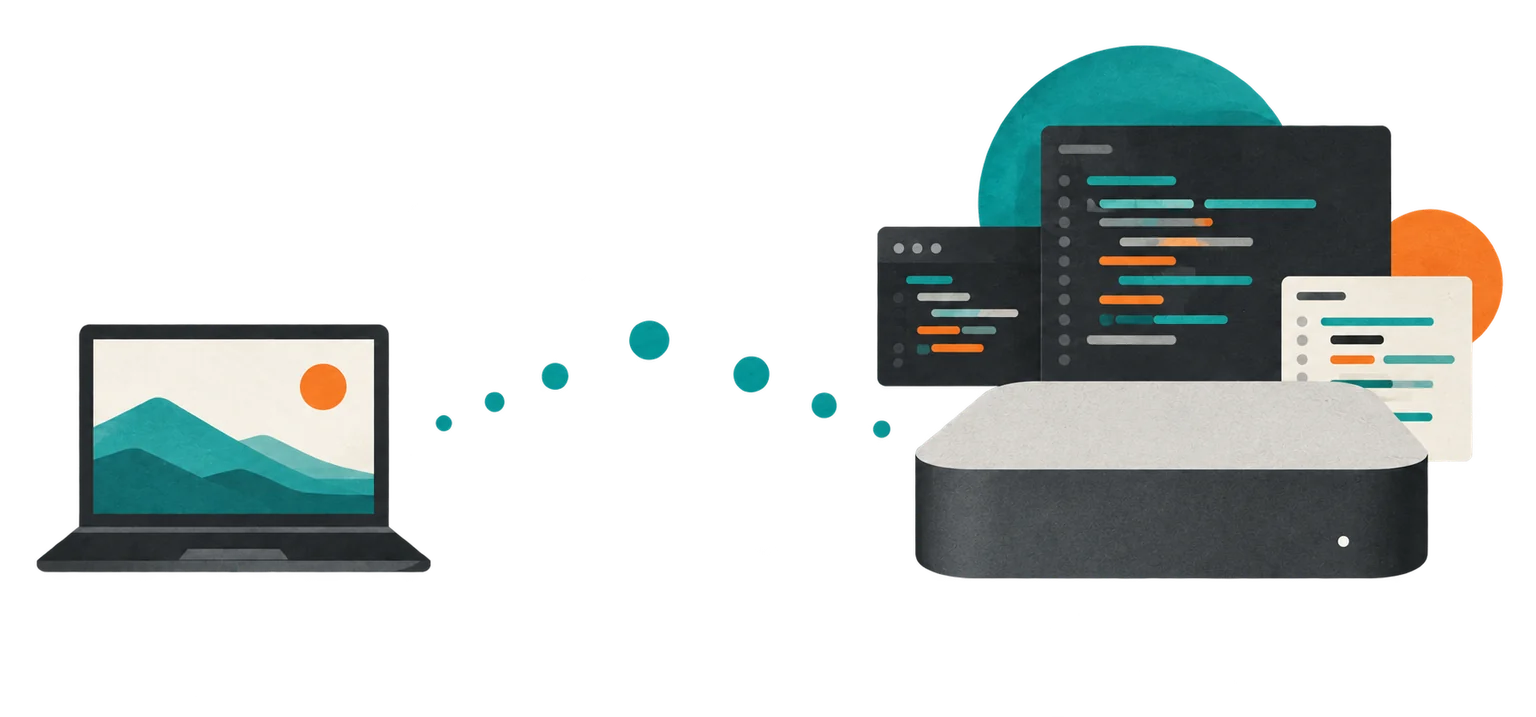
My MacBook is a client now
I wanted to stop running development code and scripts on the same machine that holds my personal information. My MacBook has my iCloud data, passwords, browser sessions, and other personal files. Running unvetted open-source code and giving coding agents access to that environment was making me increasingly uncomfortable.
The recent surge in malicious open-source packages, particularly in the Node and Python ecosystems, was making that discomfort harder to ignore.
So I moved development onto a dedicated Mac mini and kept the MacBook as the client. I also wanted one place for my repositories and tooling, instead of maintaining development environments across multiple Macs.
Using containers or VMs is more secure, but I find them a PITA to work in all the time. A dedicated machine is simpler and more pleasant for everyday work, with enough reduction in exposure to make it worthwhile.
A separate development account
The Mini has a standard user account named dev, with its own home directory. It’s not connected to iCloud. It’s not signed into my browser profile. It has no access to my personal files or passwords. I keep the administrator account separate and use admin credentials explicitly when something needs elevated permissions.
Switching between the admin and development accounts during setup was slightly annoying at first. But I wanted routine development to happen as a standard user, so it was a necessary inconvenience.
The basic arrangement is:
MacBook                              Mac mini
  Zed                                  dev account
  Ghostty + Herdr      SSH over           repositories
  Codex Desktop  ──── Tailscale ────>     development tools
                                         agent sessions
                                         development credentials
The clients run on the MacBook. The development environment lives on the Mini.
Tailscale for the network, OpenSSH for access
I use Tailscale to provide a private network path between the two machines.I deliberately chose normal SSH rather than Tailscale SSH because I already understand and trust the macOS/OpenSSH model. I can use ordinary Unix users and SSH keys, with authorized_keys on the server and ~/.ssh/config on the client. Tailscale documents this standard SSH arrangement separately from its own SSH authentication feature.
On the Mini, I enabled macOS Remote Login for the dev user and added an Ed25519 public key from the MacBook to that account’s ~/.ssh/authorized_keys. Remote Login lets you restrict access to selected users only.
Here’s the entry in the MacBook’s ~/.ssh/config.
Host mac-mini
    HostName <mac-mini-tailscale-hostname>
    User dev
    IdentityFile ~/.ssh/<dev-key>
    IdentitiesOnly yes
mac-mini is an SSH alias. I don’t have to remember the Mini’s actual network hostname. I can use the alias instead like so:
ssh mac-miniZed and Codex Desktop can use the same SSH target after their remote connections are set up. If I switch away from Tailscale later, I’ll need another network path, but I can keep the ordinary SSH setup.
Sharing only the credentials I need
I set up a 1Password guest account for use in the development account and share only the passwords it needs. The guest-sharing feature lets me limit access to a selected vault instead of bringing my full personal password manager into the environment.
I also use Secure Notes to pass temporary text into the development account, including API keys, SSH keys, passwords, or whatever other text I need there.
Not having my full password manager available can be frustrating. It means an extra step when I need something I haven’t shared yet. But copying all my personal secrets over would defeat the purpose of this setup. Credentials are scoped to the development work that needs them.
I also cleaned up GitHub authentication. Instead of exporting a global GH_TOKEN, I use:
gh auth loginBy default, gh auth login uses a browser login and stores the token in the system credential store.
An authentication problem that was actually networking
During setup, running gh auth status inside Codex made it look like my GitHub credential was invalid. The fix was to enable networking in the workspace-write sandbox.
sandbox_mode = "workspace-write"

[sandbox_workspace_write]
network_access = true
This gives sandboxed commands network access. I was comfortable allowing it for my work on the Mini, while keeping the filesystem restrictions. The credential was valid once the command could reach GitHub.
Herdr and closing the laptop
I use Herdr to manage CLI agents in the terminal. At first I used a normal SSH session to the Mini and launched Herdr inside it.
ssh mac-mini
herdr
That worked until I closed the MacBook or let it sleep long enough for the connection to break. I’d come back to Broken pipe, sometimes with raw mouse-control escape sequences appearing in Ghostty and the terminal left in a mangled state.
A better approach is to run Herdr directly on the MacBook with the --remote flag.
herdr --remote mac-miniIn Herdr’s remote mode, the local client draws the interface while the remote server owns the running panes and sessions. It just needs working SSH access and a compatible Herdr installation on the host.
I can close the MacBook with several agents working, then run the same command later to reconnect to the existing work. The agents can continue while the laptop is closed because they’re running on the Mini.
That has made the terminal workflow much more comfortable. I can disconnect the client without treating it as the end of the work session.
Zed makes remote editing practical
Being able to open and edit files as easily as if they were on my local filesystem is a must-have for me. If connecting to the Mini were a chore every time I wanted to change a file, I wouldn’t stick with this setup.
VS Code offers remote editing, but in my experience it was slower and flakier. I had to reconnect frequently, and reconnecting was slow enough to be annoying.
Connecting and reconnecting with Zed is super fast. I usually only need to reconnect after the laptop goes to sleep.
Zed’s remote development uses the local SSH client and inherits the matching settings from ~/.ssh/config. In its Remote Projects dialog, I can use ssh mac-mini as the connection command, then choose the project directory on the Mini. Zed runs its interface locally, while the remote server handles things like language servers and terminal commands.
One environment, a few familiar clients
The maintenance benefit is straightforward. My repositories, runtimes, and package managers are on one machine. So are the agent tools and their instructions, skills, and hooks. When I change that environment, the next client connection reaches the same setup. I don’t have to repeat the development-tool changes on the laptop.
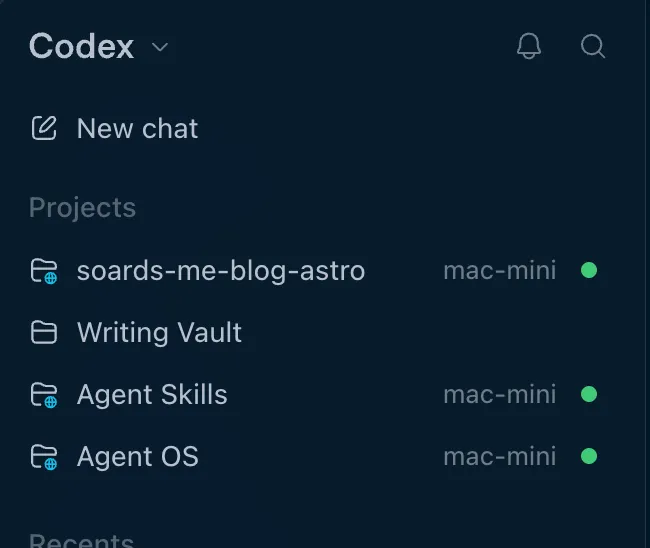
Codex Desktop has also become a bigger part of my workflow. It supports projects over SSH, using the same mac-mini alias. I love having local and remote projects together in the sidebar, with the remote entries identified by the host name and a different folder icon. Working in those remote projects feels almost no different from working locally. I expected to stay mostly with CLI agents, but Desktop has been so easy to work with that I’ve found myself using it more.
I now do all my development on the Mini, using Zed for file editing, Codex Desktop, and Ghostty with Herdr for Codex and pi CLI agents. I’ve even uninstalled the Codex CLI from my MacBook.